Reorders
How to Add a Reorder Button to Product Packaging
A reorder button is a link on the page behind your QR code or NFC tag that goes straight to your store. Here's where it should point, what it needs to keep working, and which plan includes it.
By Ali Murtaza ·
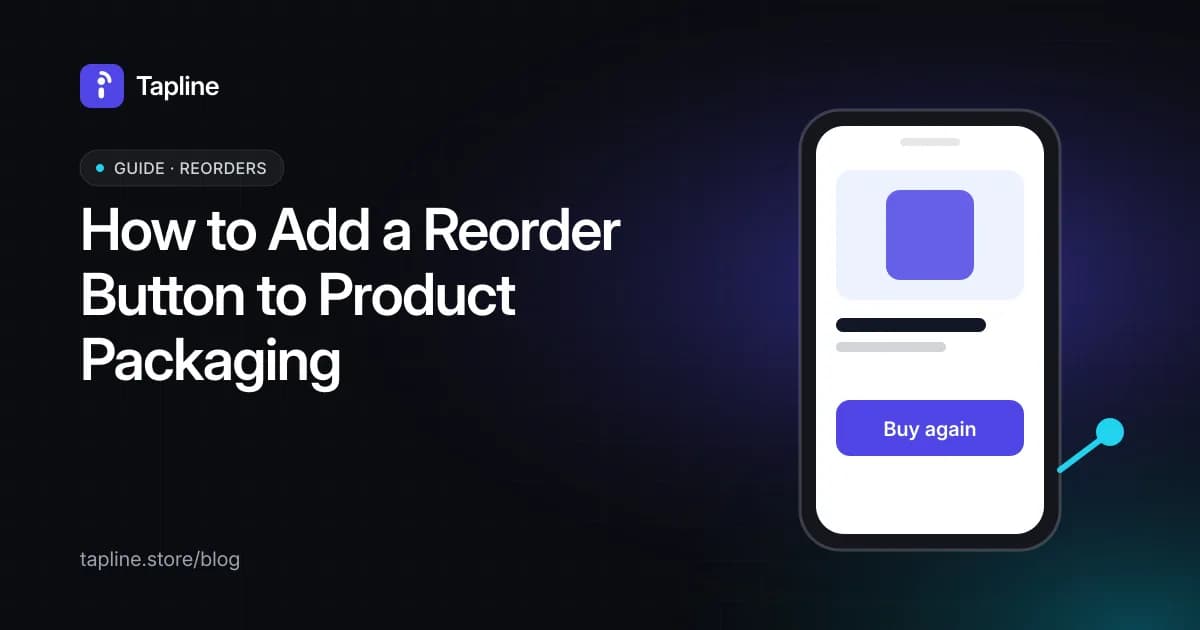
A reorder button is just a link — on the page a shopper reaches after scanning or tapping the pack, pointing at your Shopify product page, your checkout, or any store URL you choose. The button itself is simple. What matters is where it points and whether that destination stays correct after you change a price or run out of stock.
Where it should point
- A specific product page, not your store's homepage — the shopper already knows what they want to buy again.
- A checkout link if you want the fewest steps between tap and purchase, at the cost of skipping any upsell or bundle offer a product page would show.
- Any store URL works, not just Shopify — the button is a plain link under the hood.
Keeping it correct after launch
A reorder button that links to a fixed URL doesn't update itself if you change the price or the product goes out of stock — you'd need to edit the page. Shopify sync (coming soon on Tapline's Scale plan) will keep the linked product's price and availability current automatically, so the button never points at stale information.
Which plan includes it
| Plan | Reorder button |
|---|---|
| Free | Not included |
| Growth ($29/month) | Included, manual store URL |
| Scale ($99/month) | Included; Shopify sync (coming soon) |
Full plan comparison is on the pricing page.
Once the reorder link works, the same page can ask for a review while the product is in hand — see how to collect reviews from a product pack.